Collect guest numbers at registration
Let registrants say how many people they are bringing, so your expected headcount is right for catering and capacity.
Steps
- 1
Turn guests on for the form
In Forms, enable guests and set the maximum each registration may bring. The limit is enforced on the server, so a changed value in the browser cannot get past it.
- 2
Decide about names
Choose whether to collect guest names or only the number. Many events only need the headcount, and asking for less gets more completed forms.
- 3
Watch the expected headcount
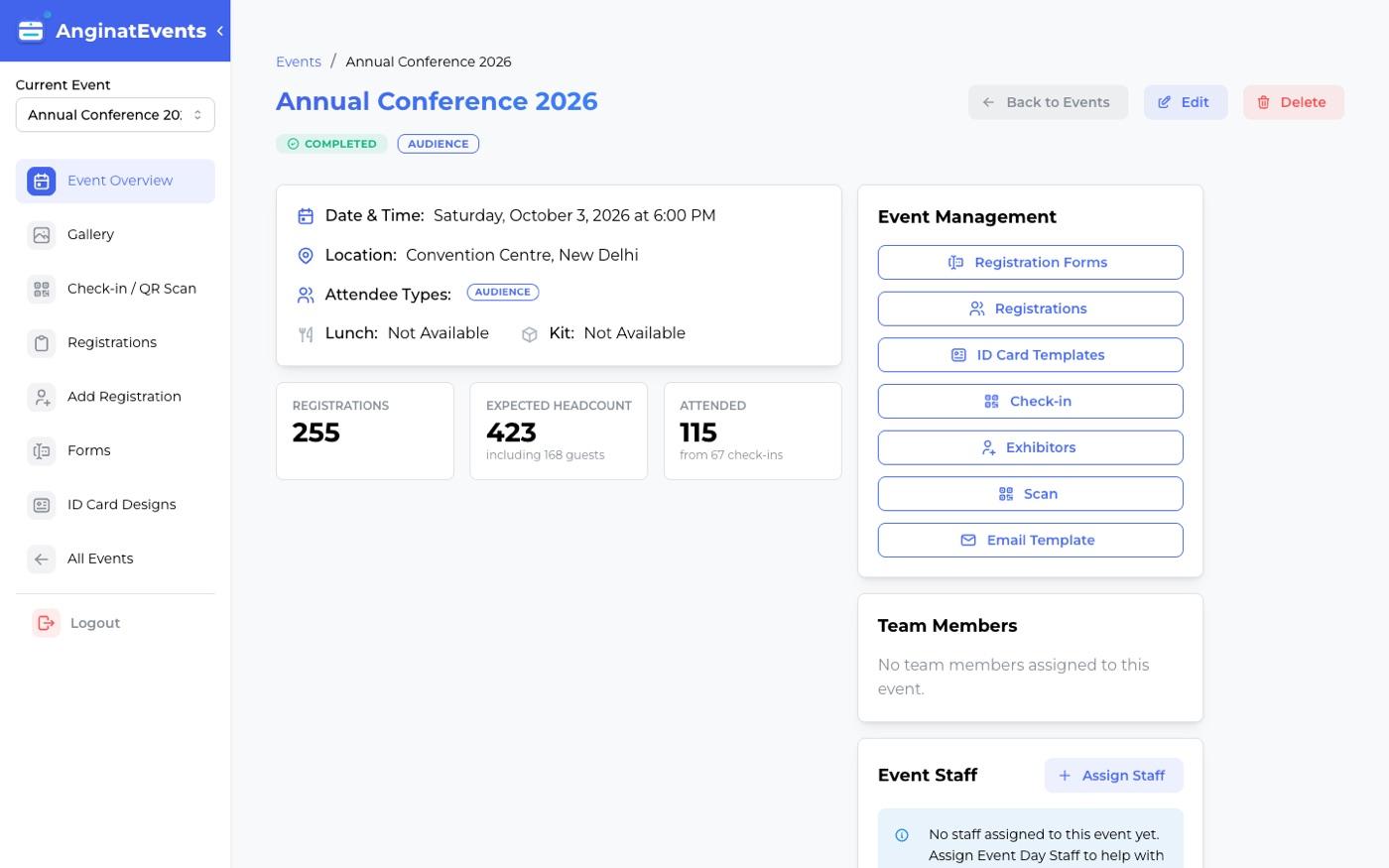
The event overview shows registrations and expected headcount side by side, with the guest total called out. That second number is the one to give a caterer.
Guests do not receive their own pass. The registrant’s QR admits the whole party, which is why the party size matters at the door.
Questions
Do guests get their own QR code?
No. One pass admits the party, and the check-in screen shows staff how many people that registration covers.
Can I change the guest limit after people have registered?
Yes. Existing registrations keep the number they submitted; the new limit applies to anyone registering afterwards.
What if I only want a headcount, not names?
Leave name collection off. The form then asks for a number alone, which is all most events need.